Custom sleep screens fail for a handful of reasons, and they are different on every brand. Jump to yours: Kindle · Kobo · Xteink · Boox.
Kindle
The lock screen shows ads, not your picture
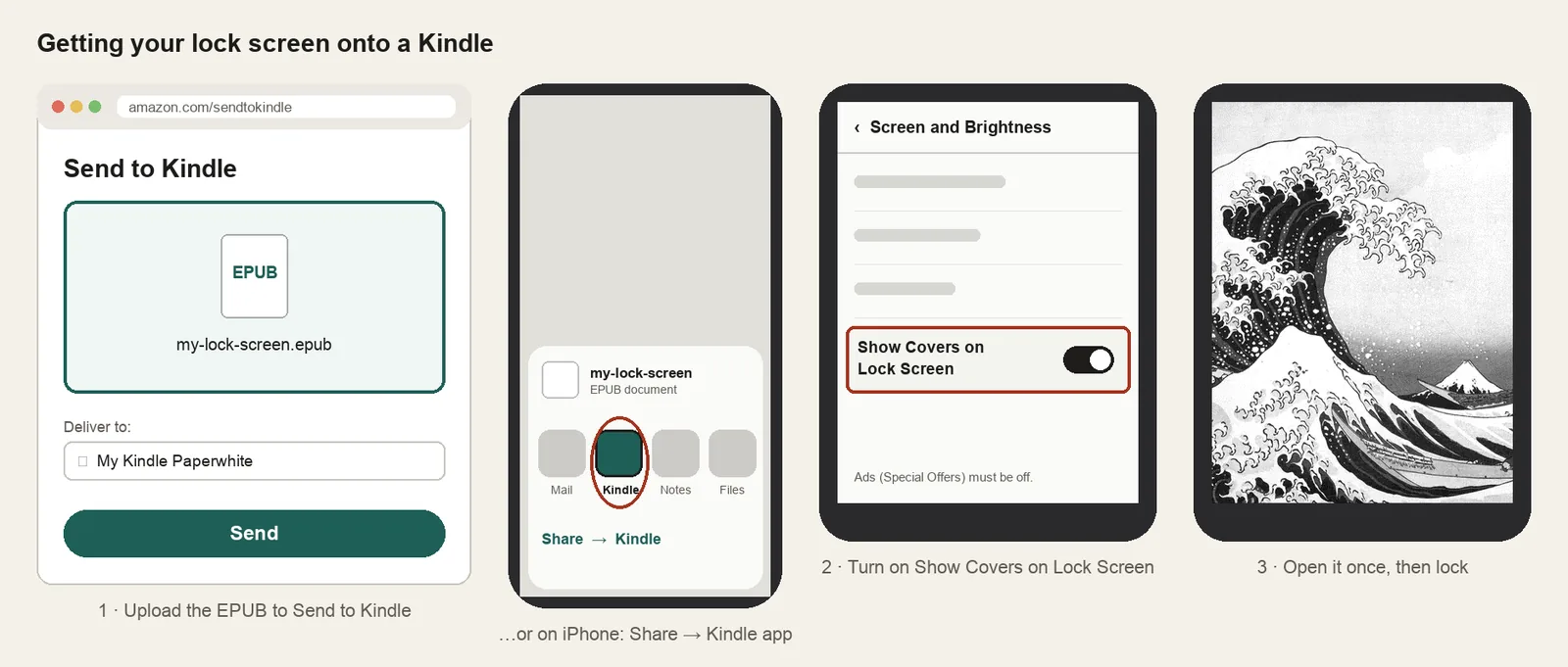
Why: Special Offers are on. While they are, Kindle hides the cover option.
Fix: Remove the offers in your Amazon account (Content Library → Devices → your Kindle → Remove offers), sync the Kindle, then follow the ad removal guide if the option is missing.
There's no Show Covers on Lock Screen setting
Why: Ads are still on, the software is old, or the Kindle is from before 2015.
Fix: Remove ads, then update (Settings → Device Options → Advanced → Update your Kindle). Look under Screen and Brightness, or Device Options → Display Cover on older software. Paperwhite 1 and 2, Kindle 4, 5 and Touch don't have the setting at all.
It shows a different book's cover
Why: The lock screen always shows the last book you opened.
Fix: Open your lock screen book from the Library again, then press the power button. Keep it as the last thing you open before locking.
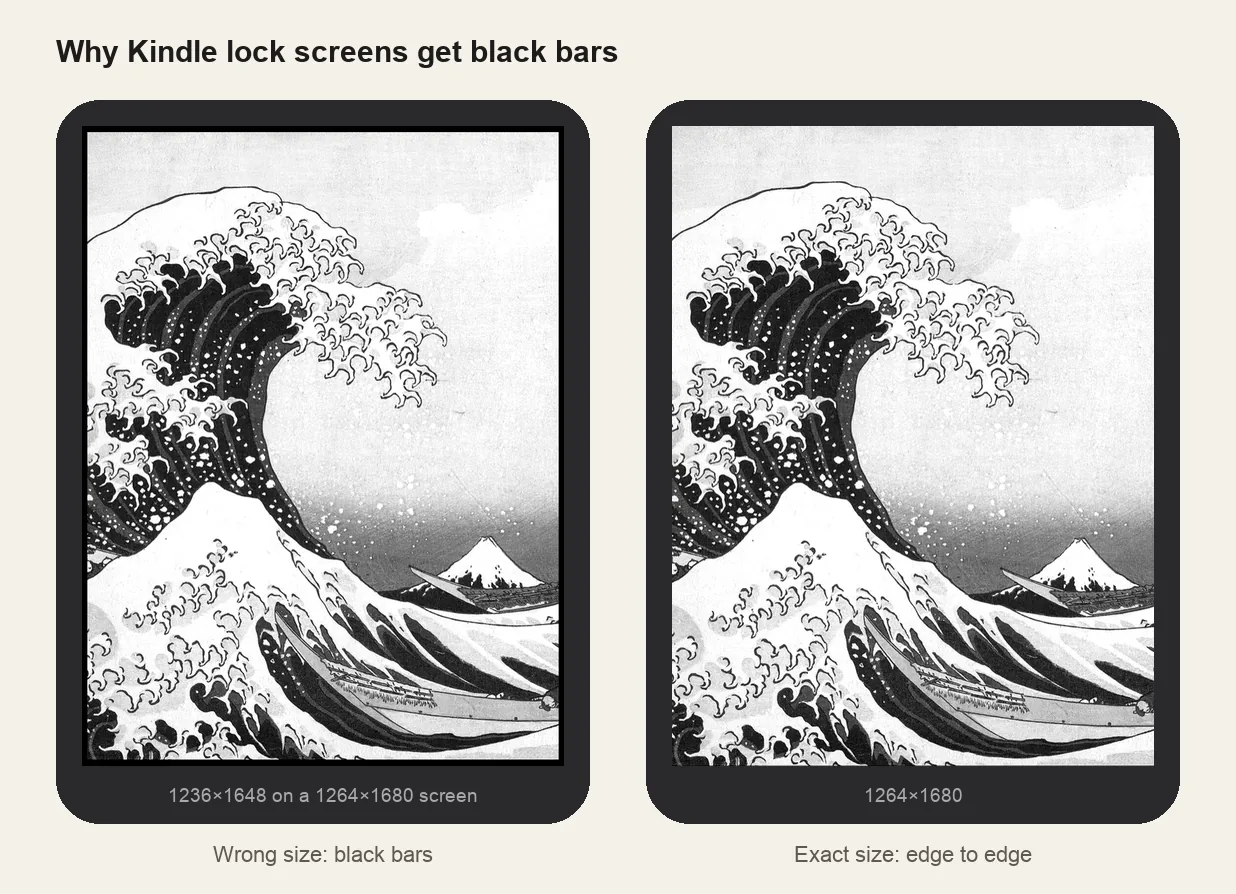
Black bars around the picture
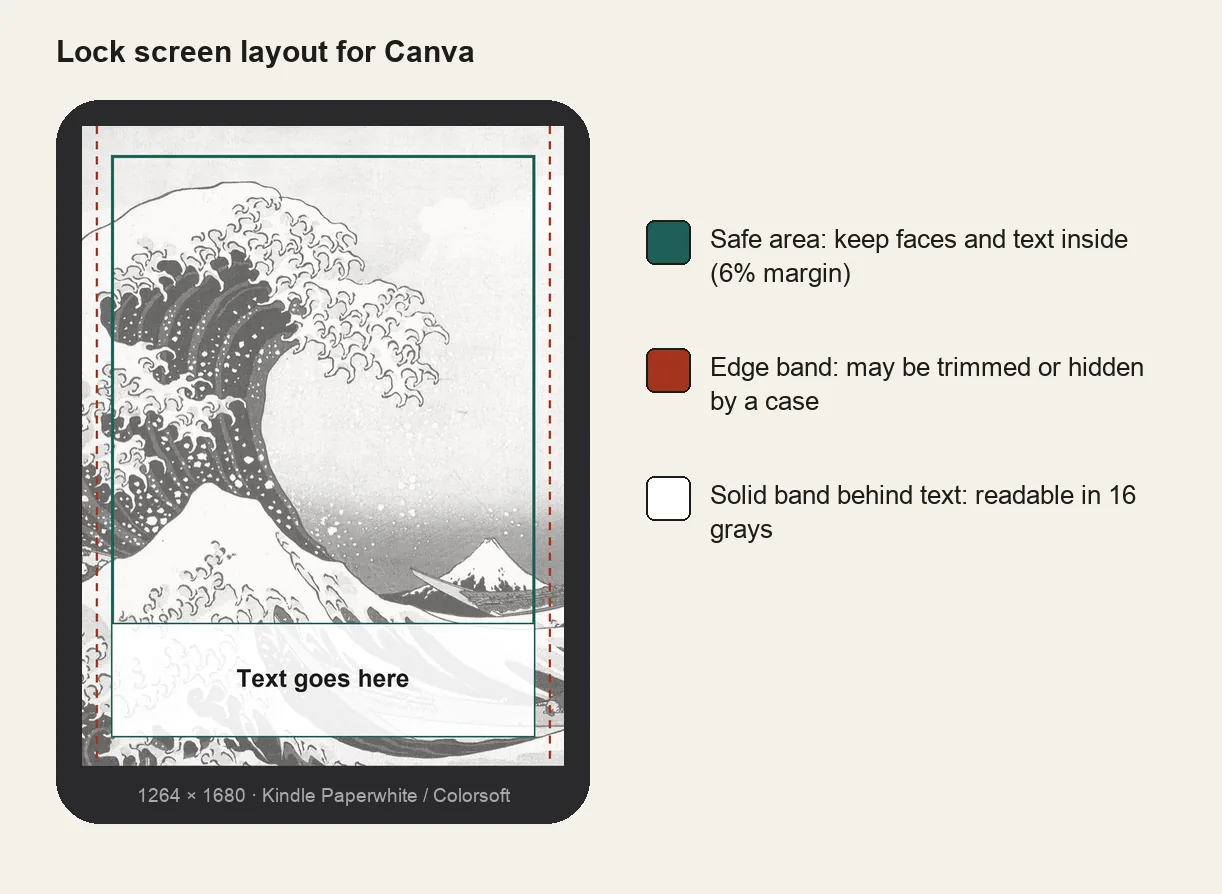
Why: The cover isn't the exact size of your screen. The most common case is the 2021 Paperwhite size used on the 7-inch model.
Fix: Re-make the file at your model's size. The screen size chart lists every Kindle, and the Kindle maker builds the EPUB at the exact size.
A blank or generic cover
Why: The file was copied over USB, or the EPUB had no proper cover image.
Fix: Send the EPUB with Send to Kindle instead of copying it over USB. On iPhone, open the file, tap Share and pick the Kindle app. Covers of USB-copied personal documents often don't show.
The picture looks muddy or flat
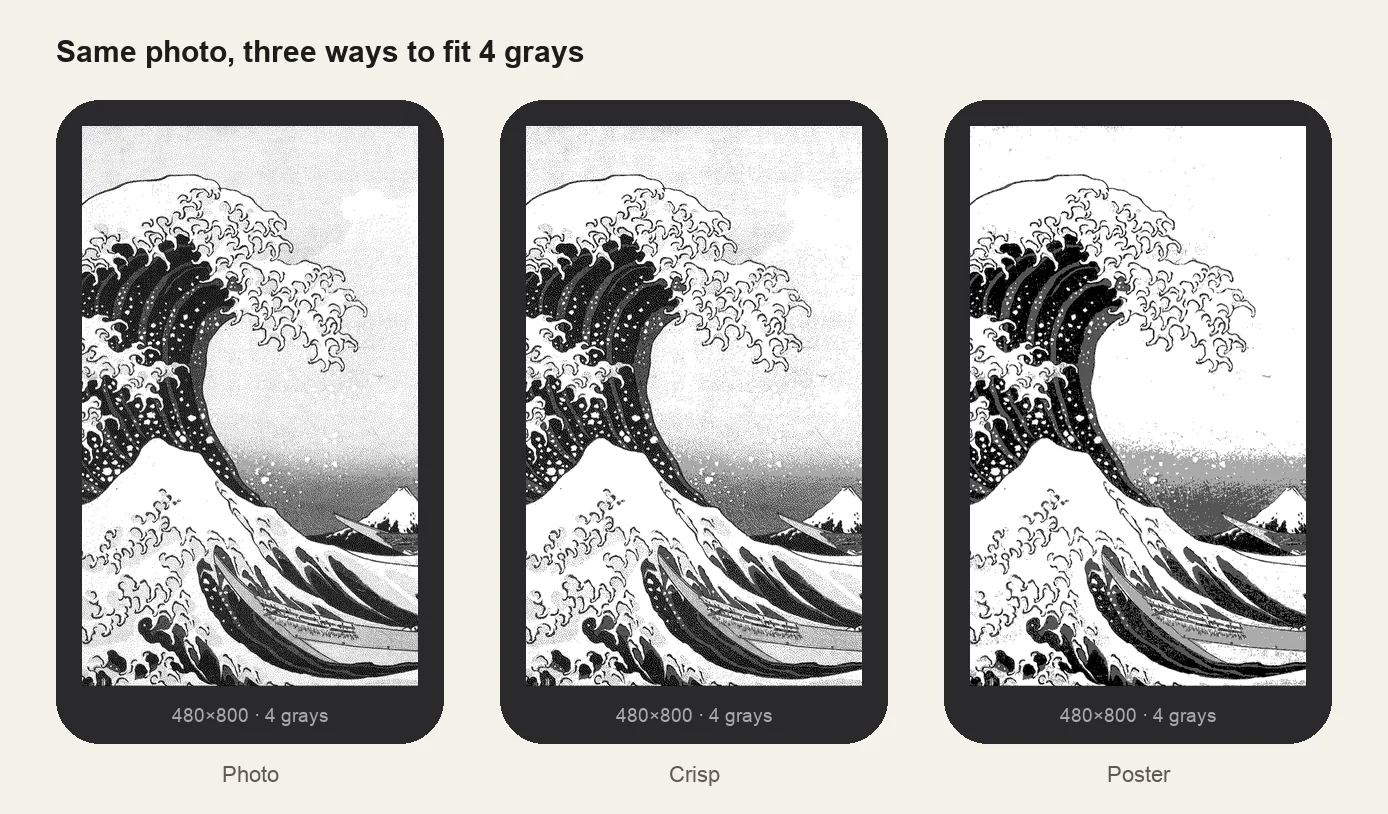
Why: Phone photos rely on mid-tones that collapse in 16 grays.
Fix: Raise contrast 15–25 before downloading and judge the grayscale preview, not the original photo.
Kobo
Kobo shows Sleeping, not your image
Why: No book is open. Kobo only replaces the sleep screen while you're reading.
Fix: Open any book, read a page, then put the Kobo to sleep.
Nothing changed after copying the images
Why: Wrong folder name or location, or the two settings are off.
Fix: The folder must be .kobo/screensaver: lowercase, singular. Then turn on Show current read and Show book covers full screen in Settings → Energy saving and privacy. Firmware 4.13 or later is needed.
It shows your book's cover instead
Why: The screensaver folder wasn't found.
Fix: Check the spelling, and that the images are JPG or PNG. Renamed folders like Screensaver or screensavers are ignored.
Stuck on Processing after unplugging
Why: The cable was pulled while Kobo was indexing.
Fix: Wait a minute or two. If it stays stuck, hold the power button for 10–15 seconds to restart. Always eject before unplugging.
KOBOeReader/└── .kobo/ ← hidden└── screensaver/ ← lowercase, singular└── my-lock-screen.png
Xteink X4 and X3
The default logo still shows
Why: Wrong file name or place, or Sleep Screen isn't set to Custom.
Fix: Name the file sleep.bmp in the SD card root, or put BMPs in .sleep/. Then Settings → Display → Sleep Screen → Custom.
A JPG or PNG is ignored
Why: Custom sleep screens must be BMP.
Fix: Convert to an uncompressed 24-bit BMP. The Xteink converter outputs exactly that.
Borders, or a squashed picture
Why: Wrong size: 480×800 is the X4, 528×792 is the X3.
Fix: Re-make it for your model. X4 wallpapers don't fit the X3 and vice versa.
Boox
The picture is cropped or stretched
Why: Boox scales images that don't match the screen.
Fix: Make it at your model's size; the Boox maker lists Leaf, Page, Go, Note Air and Palma.
Washed out on a color Boox
Why: Kaleido color screens mute colors and show them at half resolution.
Fix: Pick bold, saturated images and raise brightness slightly.