New · My Clippings.txt · Nothing uploaded
Your Kindle highlightsas your lock screen.
You can turn any saved quote from your Kindle into a custom lock screen using your device's My Clippings.txt file. Select your favorite highlight here, typeset it for e-ink typography, and place it on a clean book page or over your own photo.
- Pixel-perfect fit with no black bars
- True e-ink preview
- Photos never leave your device
Try a sample, or open your highlights
Connect your Kindle by USB and open documents/My Clippings.txt. It never leaves your computer.
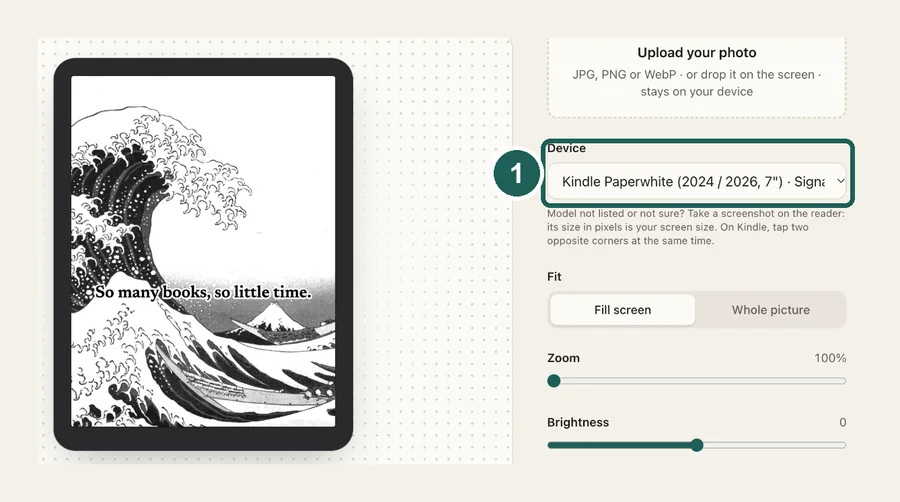
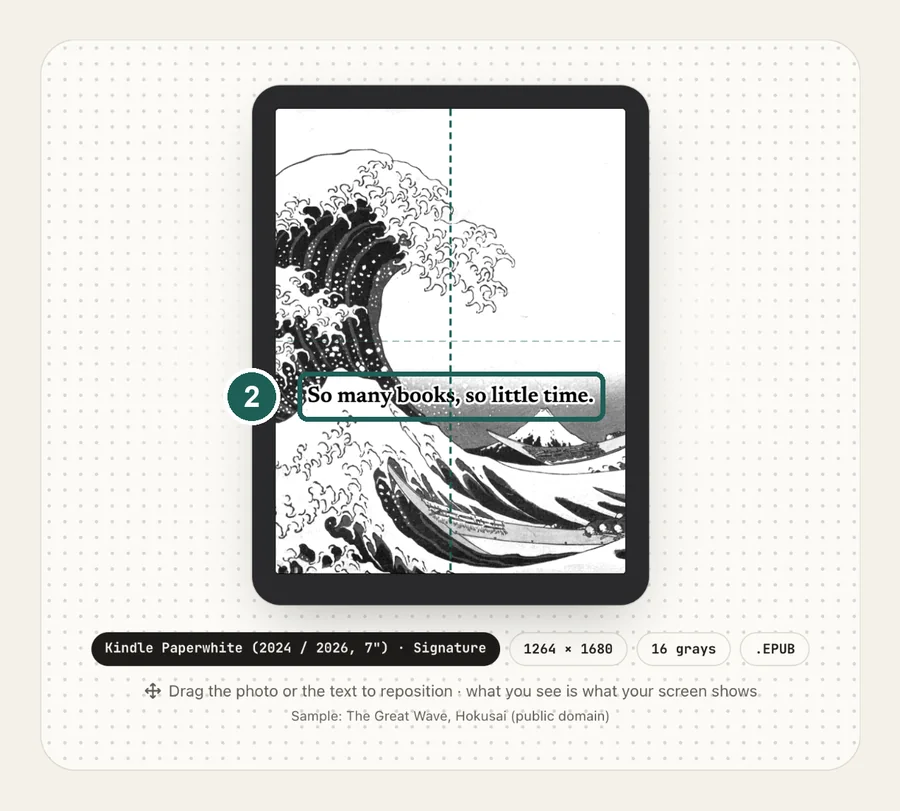
- Kindle Paperwhite (2024 / 2026, 7") · Signature
- 1264 × 1680
- 16 grays
- .epub
Drag the photo to reposition · live preview matches your screen
Don't see your model? Take a screenshot on your reader to find its pixel size (on Kindle, tap opposite corners simultaneously), then choose Custom.
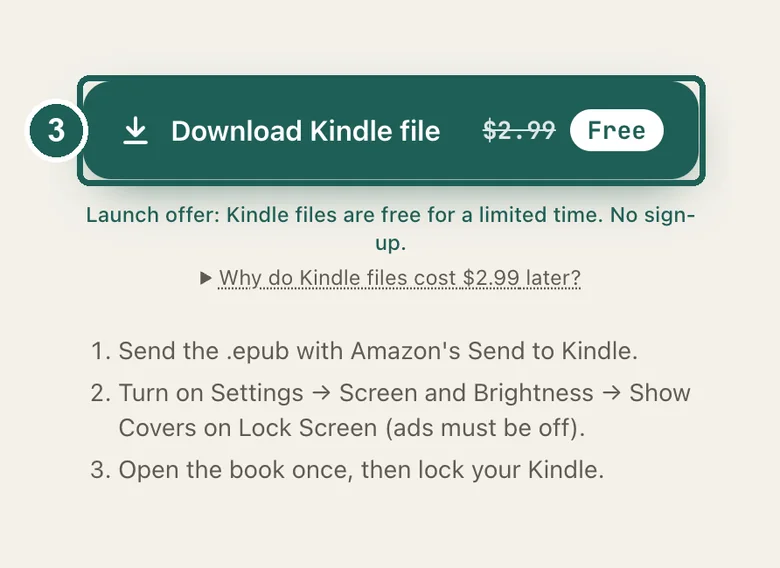
Launch offer: Kindle files are free for a limited time. No sign-up.
Why do Kindle files cost $2.99 later?
Kobo, Boox and Xteink take a plain image, so those stay free forever. Kindle can't: it only shows a book cover on the lock screen. We build a real e-book around your picture, sized so Amazon's Send to Kindle conversion keeps it edge to edge, and keep testing it across Kindle generations as Amazon updates its software. The small fee pays for that upkeep.
- Send the .epub with Amazon's Send to Kindle.
- Turn on Settings → Screen and Brightness → Show Covers on Lock Screen (ads must be off).
- Open the book once, then lock your Kindle.
Something not working, or an idea? Tell us. We read everything.
How it works
 1
1Open My Clippings.txt
Connect the Kindle by USB; the file is in the documents folder. It's read in your browser and never uploaded.
 2
2Pick a highlight
Search by word, book or author. The quote is centered and sized to its length; drag it or change the font.
 3
3Send it back
Download the Kindle file, send it with Send to Kindle, turn on Show Covers on Lock Screen, and open it once.
How Kindle highlights become a lock screen
Kindle shows the cover of the last book you opened on its lock screen. This page builds a one-page book whose cover is your highlight, sized exactly for your model. Send it with Send to Kindle, open it once, and the quote stays on your lock screen until you open another book. See the full guide if you haven't set up Show Covers yet.
Common questions
›Where is My Clippings.txt on my Kindle?
Connect the Kindle to a computer by USB. It appears as a drive; the file is in the documents folder. It holds every highlight, note and bookmark you've made on that Kindle.
›Why are some highlights missing?
My Clippings.txt only contains highlights made on that device. Highlights from the Kindle app or another Kindle aren't in it, and some publishers limit how much of a book can be clipped.
›Is my reading data uploaded?
No. The file is read by your browser and stays on your computer. Nothing about your books or highlights is sent anywhere.
›Can I use a photo behind the quote?
Yes. Upload a photo in the maker and the quote is drawn over it, with an outline so it stays readable. Try the Poster or Ink look for a bold print style.
›Does it work on Kobo or Boox?
The quote layout works for any reader: choose Custom size, or make the image on the Kobo or Boox page and type the quote as a caption.