Kindle Colorsoft · EPUB cover
Kindle Colorsoft lock screen size1264 × 1680 px
The Kindle Colorsoft lock screen resolution is 1264×1680 pixels, displaying color covers at 150 ppi and black-and-white at 300 ppi. To use your own photo, create a one-page EPUB with this tool, send it to your Kindle, and open it once with lock screen covers enabled.
- Pixel-perfect fit with no black bars
- True e-ink preview
- Photos never leave your device
- Kindle Colorsoft (2024–2026) · Signature · Kids
- 1264 × 1680
- Color
- .epub
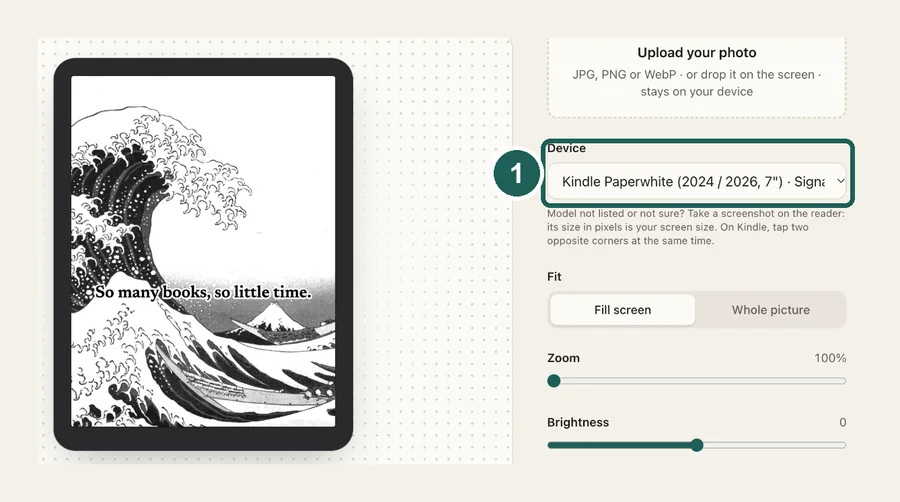
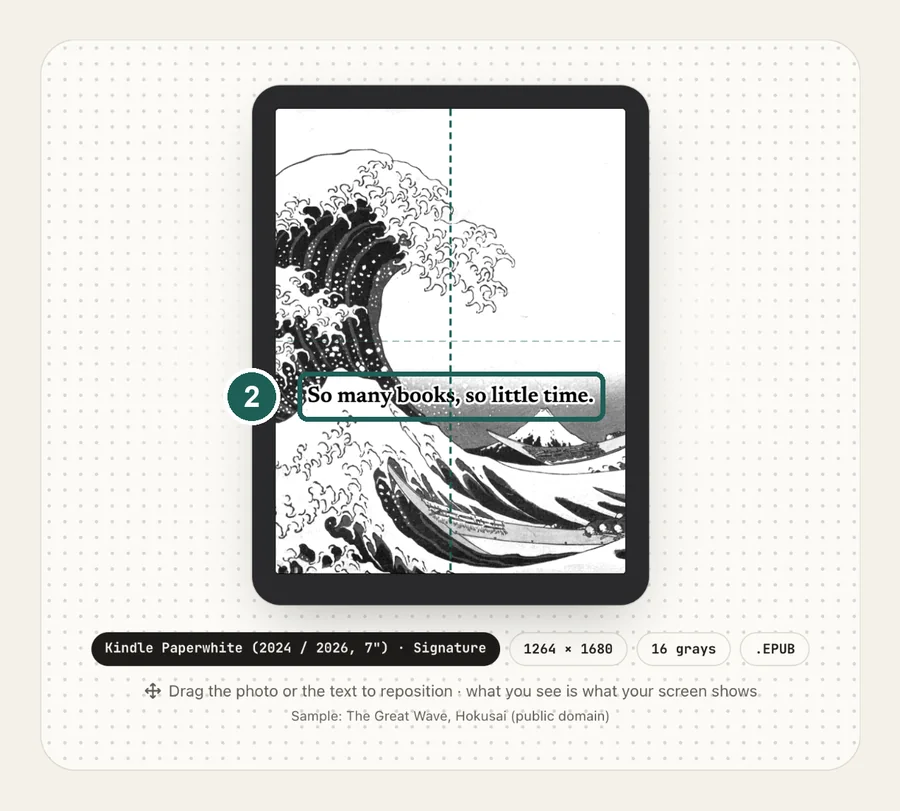
Drag the photo to reposition · live preview matches your screen
Sample: The Great Wave, Hokusai (public domain)
No picture that fits? Browse free artworks →
Don't see your model? Take a screenshot on your reader to find its pixel size (on Kindle, tap opposite corners simultaneously), then choose Custom.
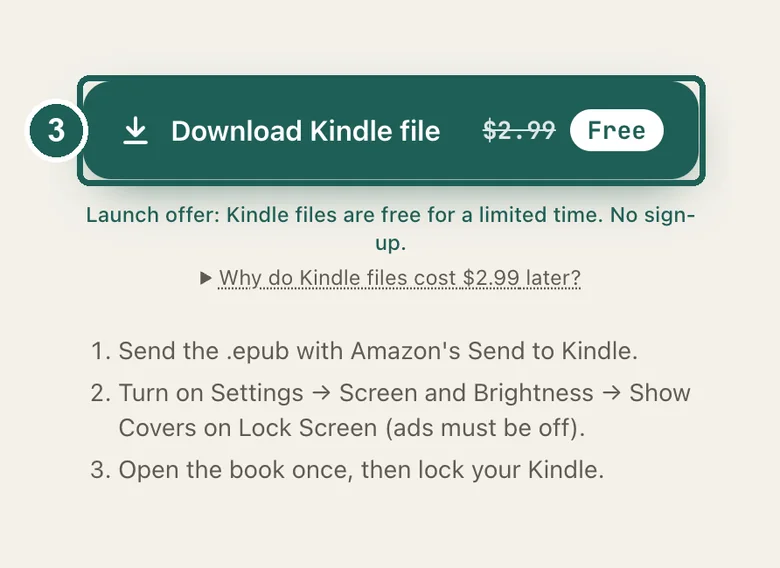
Launch offer: Kindle files are free for a limited time. No sign-up.
Why do Kindle files cost $2.99 later?
Kobo, Boox and Xteink take a plain image, so those stay free forever. Kindle can't: it only shows a book cover on the lock screen. We build a real e-book around your picture, sized so Amazon's Send to Kindle conversion keeps it edge to edge, and keep testing it across Kindle generations as Amazon updates its software. The small fee pays for that upkeep.
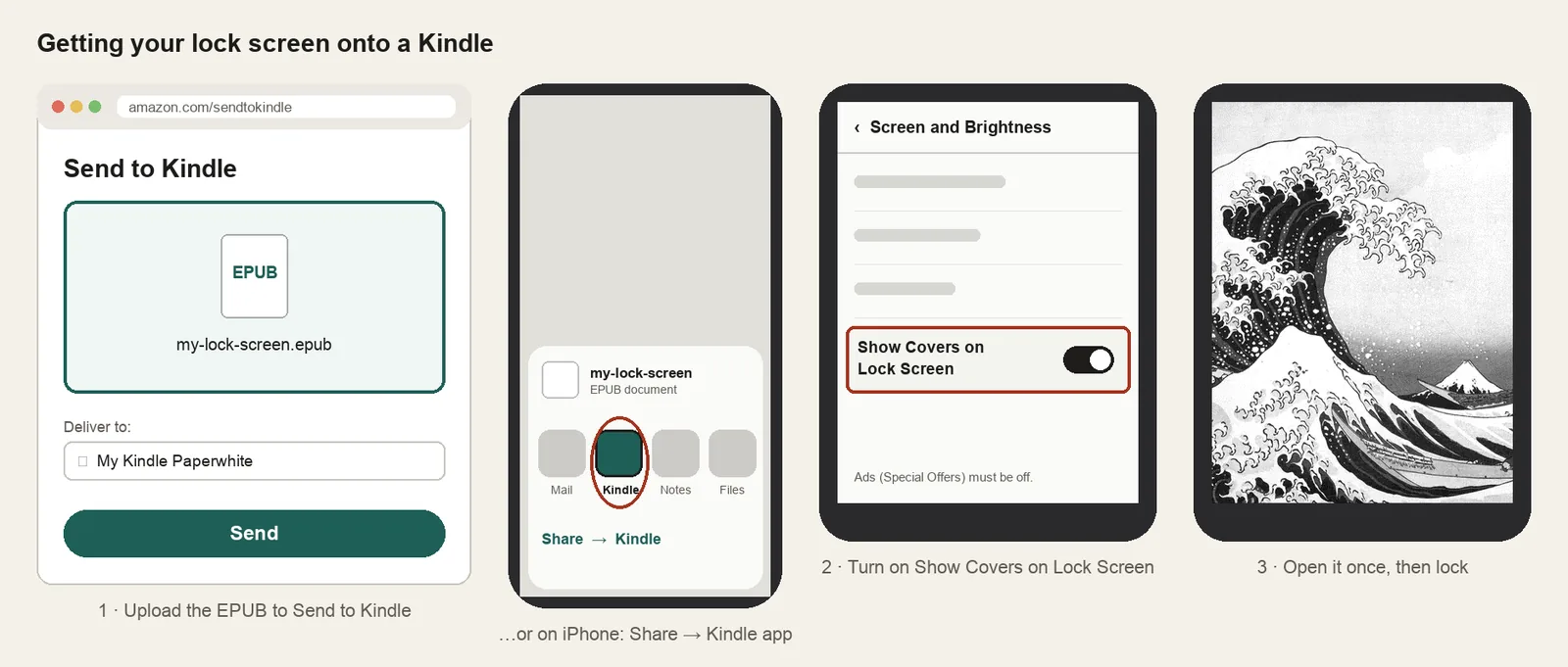
- Send the .epub with Amazon's Send to Kindle.
- Turn on Settings → Screen and Brightness → Show Covers on Lock Screen (ads must be off).
- Open the book once, then lock your Kindle.
Something not working, or an idea? Tell us. We read everything.
How it works
 1
1Use the exact size
1264×1680 pixels, portrait. Anything else gets scaled, padded with bars, or cropped by the device.
 2
2Tune for e-ink
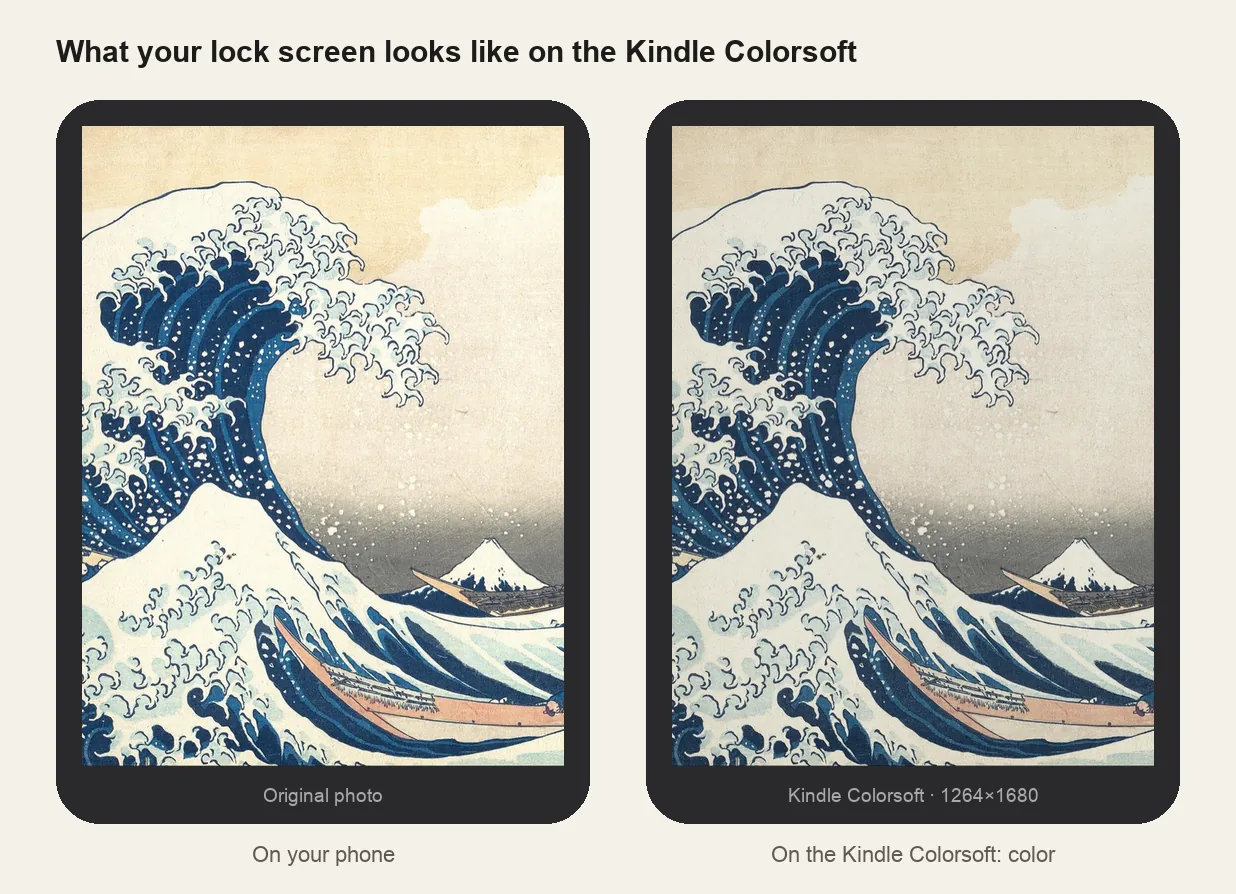
Text and grays render at 300 ppi, but color renders at 150 ppi. Fine color detail (small text in a color, thin colored lines) looks soft. Big shapes and bold colors look best.
 3
3Install
EPUB cover + Show Covers on Lock Screen. Step-by-step instructions are under the download button.
What it looks like on the Kindle Colorsoft
Kindle Colorsoft at a glance
| Models | Kindle Colorsoft (2024, 2025 16 GB and 2026), Colorsoft Signature Edition and Colorsoft Kids |
|---|---|
| Lock screen size | 1264×1680 px (portrait) |
| Screen | 7-inch color E Ink, 300 ppi black-and-white, 150 ppi color |
| How it's installed | EPUB cover + Show Covers on Lock Screen |
Push saturation a little
The color filter layer makes colors look muted and slightly darker than on your phone. Pictures with strong, simple colors and a bit of extra brightness come out closest to what you expect.
Kids and Signature models
Colorsoft Kids and Signature Edition use the same 7-inch color panel, so the same 1264×1680 file works on all of them.
Other sizes and models: see the full e-reader screen size chart.
Common questions
›My picture looks dull or dark
That's the color filter. Raise brightness slightly in the editor and pick images with saturated colors. Pastel images lose the most.
›The picture looks grainy
Color is shown at 150 ppi. Images with fine color texture look grainy; flatter illustrations look clean.
›It shows ads, not my picture
Remove Special Offers in your Amazon account, sync, and turn on Show Covers on Lock Screen under Screen and Brightness.
›The picture is in black and white
You likely picked a black-and-white Kindle model in the maker. Choose Kindle Colorsoft so the file keeps its colors.