Kindle Paperwhite · EPUB cover
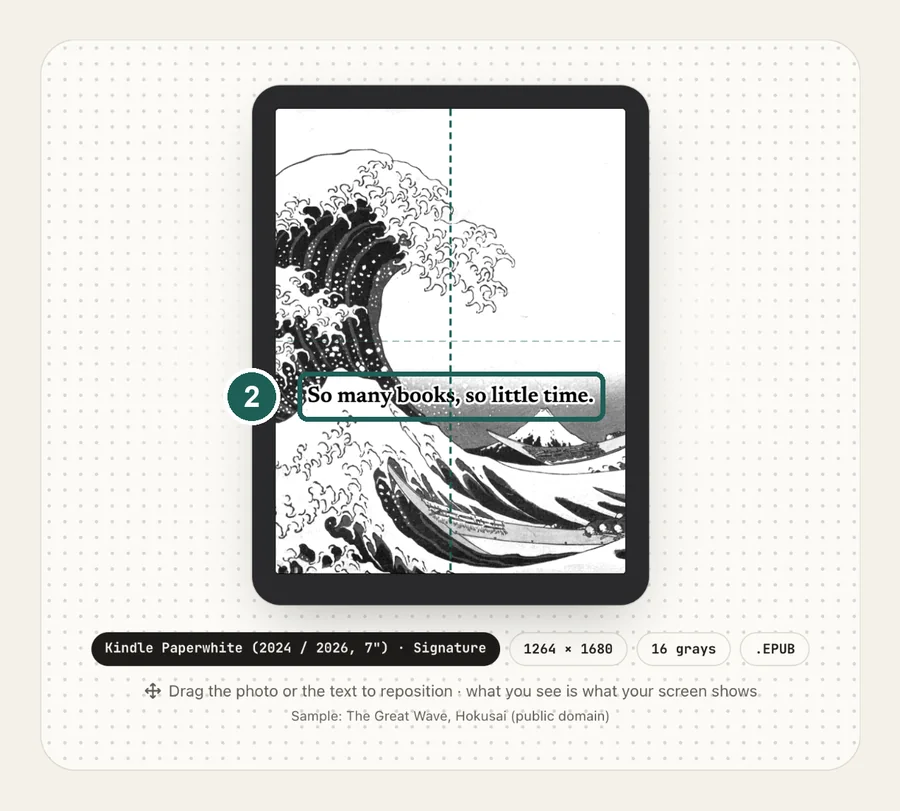
Kindle Paperwhite lock screen size1264 × 1680 px
The 7-inch Kindle Paperwhite (2024 and 2026) lock screen size is 1264×1680 pixels. Because Kindles display the cover of your most recently opened book when ads are turned off, a one-page EPUB with your photo becomes your full-screen lock screen.
- Pixel-perfect fit with no black bars
- True e-ink preview
- Photos never leave your device
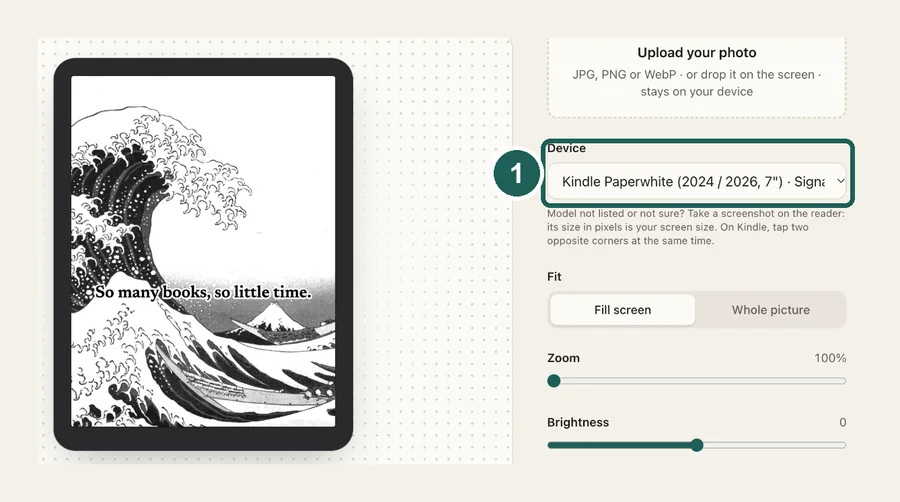
- Kindle Paperwhite (2024 / 2026, 7") · Signature
- 1264 × 1680
- 16 grays
- .epub
Drag the photo to reposition · live preview matches your screen
Sample: The Great Wave, Hokusai (public domain)
No picture that fits? Browse free artworks →
Don't see your model? Take a screenshot on your reader to find its pixel size (on Kindle, tap opposite corners simultaneously), then choose Custom.
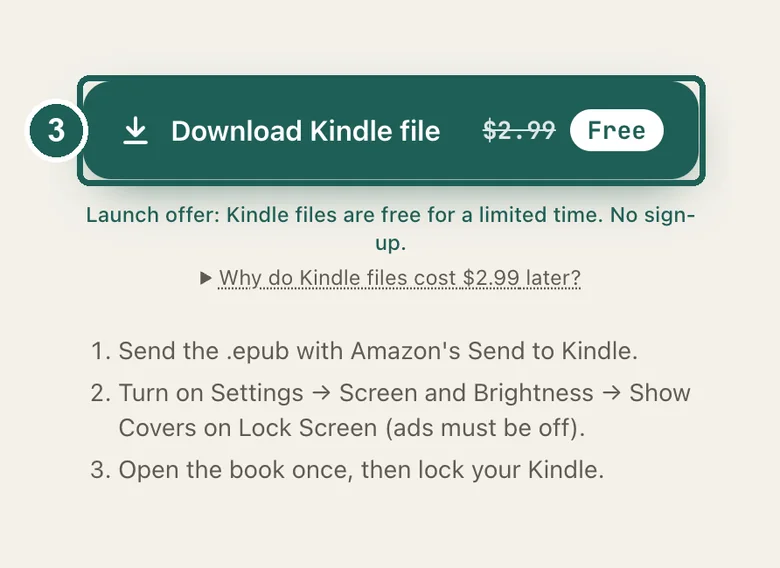
Launch offer: Kindle files are free for a limited time. No sign-up.
Why do Kindle files cost $2.99 later?
Kobo, Boox and Xteink take a plain image, so those stay free forever. Kindle can't: it only shows a book cover on the lock screen. We build a real e-book around your picture, sized so Amazon's Send to Kindle conversion keeps it edge to edge, and keep testing it across Kindle generations as Amazon updates its software. The small fee pays for that upkeep.
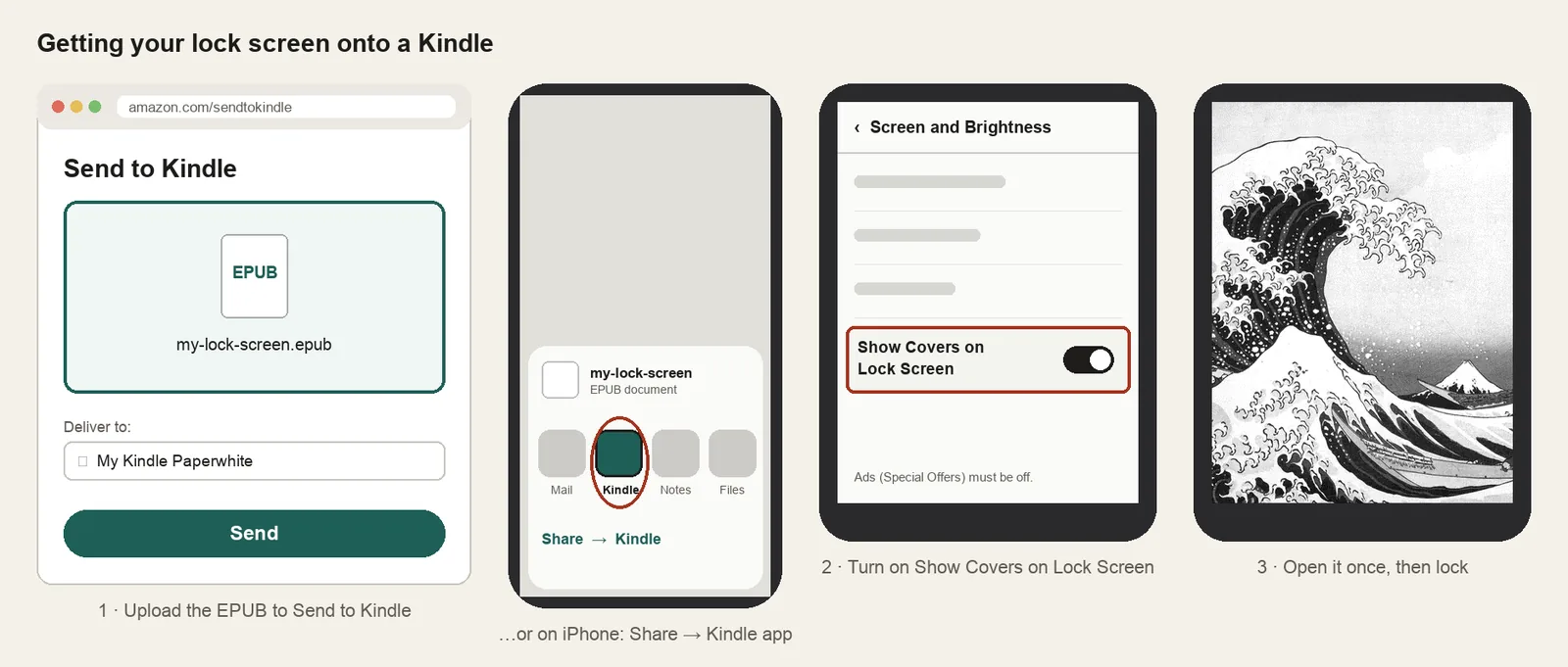
- Send the .epub with Amazon's Send to Kindle.
- Turn on Settings → Screen and Brightness → Show Covers on Lock Screen (ads must be off).
- Open the book once, then lock your Kindle.
Something not working, or an idea? Tell us. We read everything.
How it works
 1
1Use the exact size
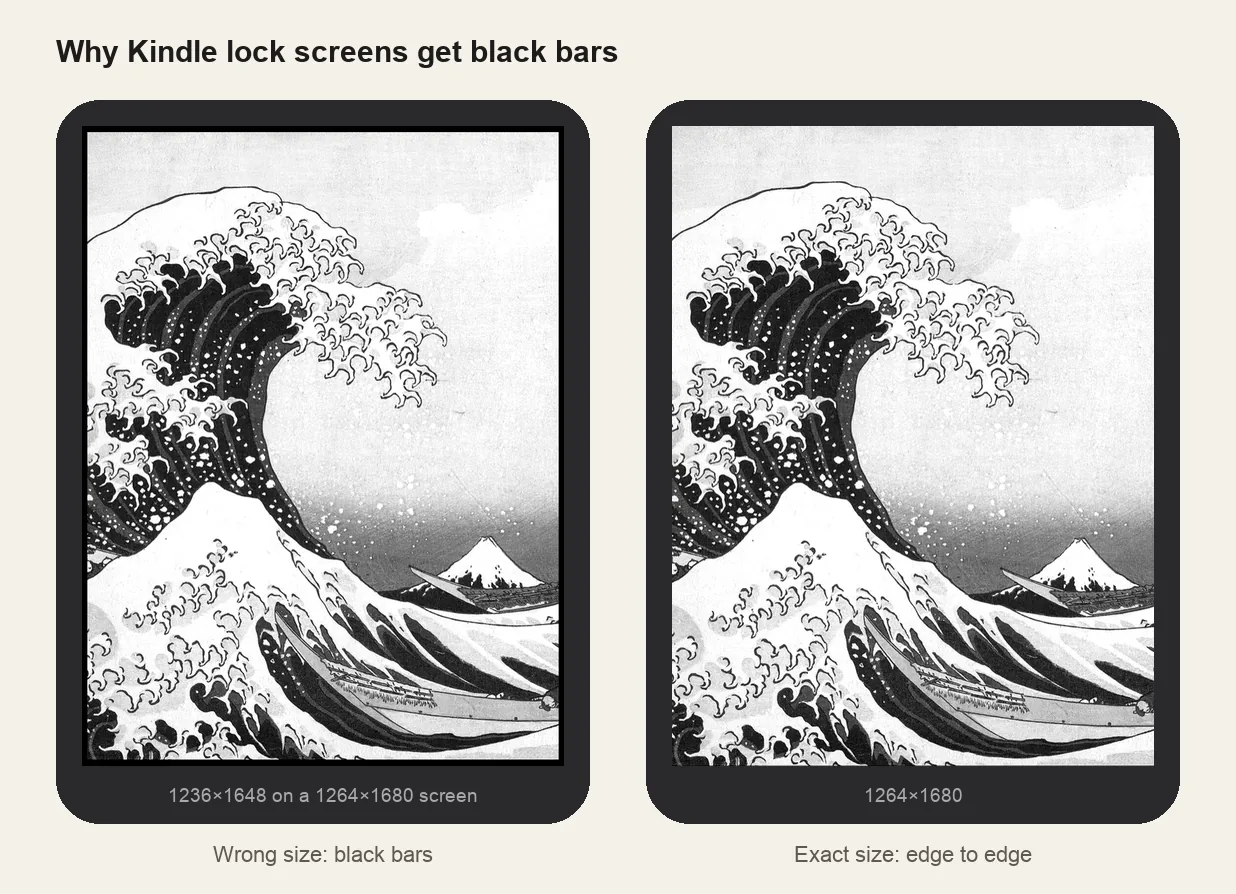
1264×1680 pixels, portrait. Anything else gets scaled, padded with bars, or cropped by the device.
 2
2Tune for e-ink
Most size charts online still list 1236×1648, which is the 6.8-inch 2021 Paperwhite. On the 7-inch model that image is slightly too small and Kindle pads it with black bars. The 2024 and 2026 models need 1264×1680.
 3
3Install
EPUB cover + Show Covers on Lock Screen. Step-by-step instructions are under the download button.
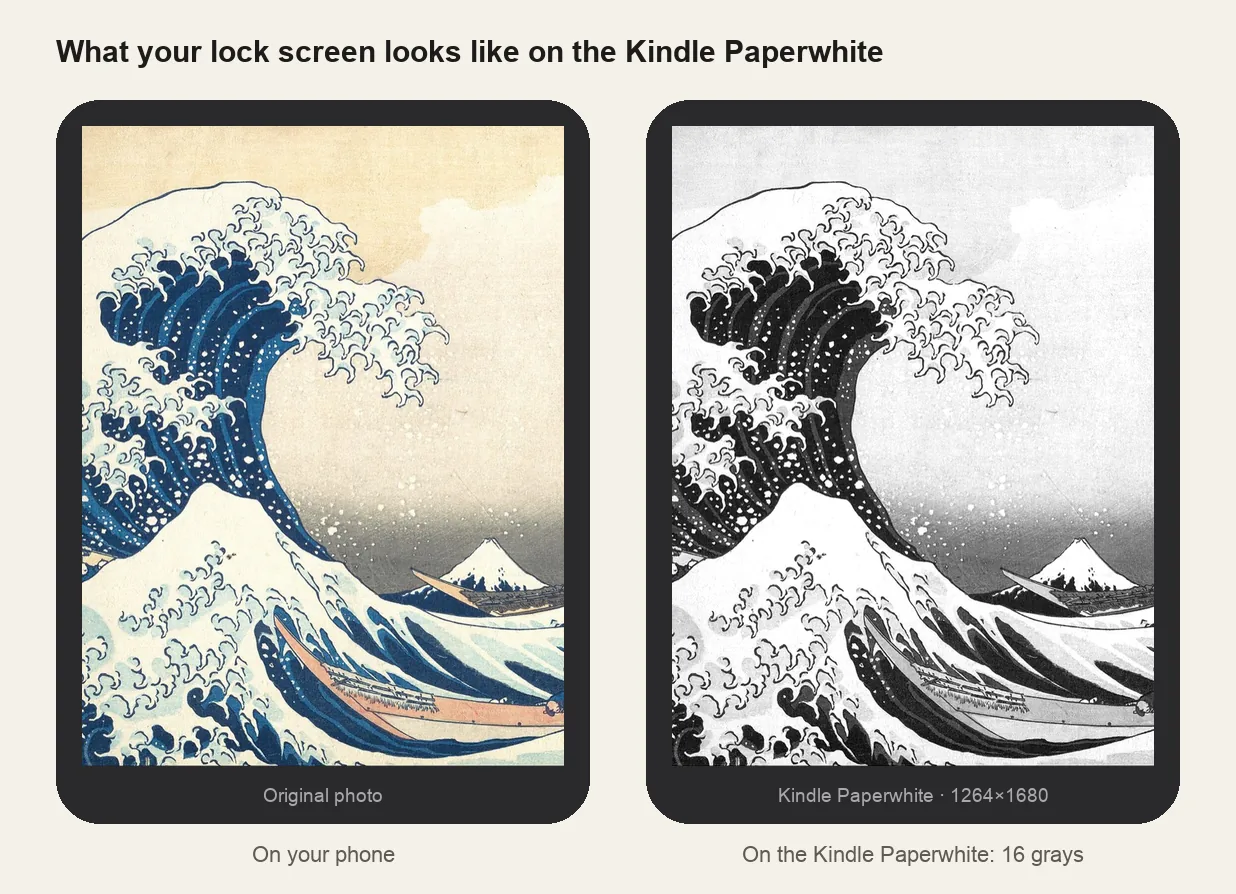
What it looks like on the Kindle Paperwhite
Kindle Paperwhite at a glance
| Models | Kindle Paperwhite 12th generation (2024) and the 2026 Paperwhite, including Signature Edition |
|---|---|
| Lock screen size | 1264×1680 px (portrait) |
| Screen | 7-inch, 300 ppi, 16 grays |
| How it's installed | EPUB cover + Show Covers on Lock Screen |
Give photos more contrast than looks right
The panel shows 16 grays. Mid-tones in phone photos collapse into a flat gray, so raise contrast by 15–25 before you download. The preview here is already in grayscale, so judge it there, not on your phone.
The 2026 model
Amazon lists the 2026 Paperwhite only as a 7-inch 300 ppi screen, the same class as the 2024 panel. If your image ever shows a thin border, take a screenshot on the Kindle (tap two opposite corners), check its pixel size, and enter it under Custom size.
Other sizes and models: see the full e-reader screen size chart.
Common questions
›My Paperwhite still shows ads instead of my picture
Cover settings remain hidden until Special Offers are turned off. In your Amazon account, go to Content Library → Devices → your Kindle → Remove offers, sync your Kindle, then enable Show Covers on Lock Screen.
›There are black bars on the sides
The image is not 1264×1680. This usually happens when using a file sized for the older 2021 Paperwhite (1236×1648). Re-export using the Paperwhite preset.
›The lock screen went back to a book cover
Kindle shows whatever book you opened last. Open your lock screen book again from the Library, then lock the Kindle.
›I can't find Show Covers on Lock Screen
Swipe down → All Settings → Screen and Brightness. If it isn't there, ads are still on, or the Kindle needs a software update (Settings → Device Options → Advanced → Update your Kindle).