Xteink X4 · 24-bit BMP
Xteink X4 wallpaper size480 × 800 px
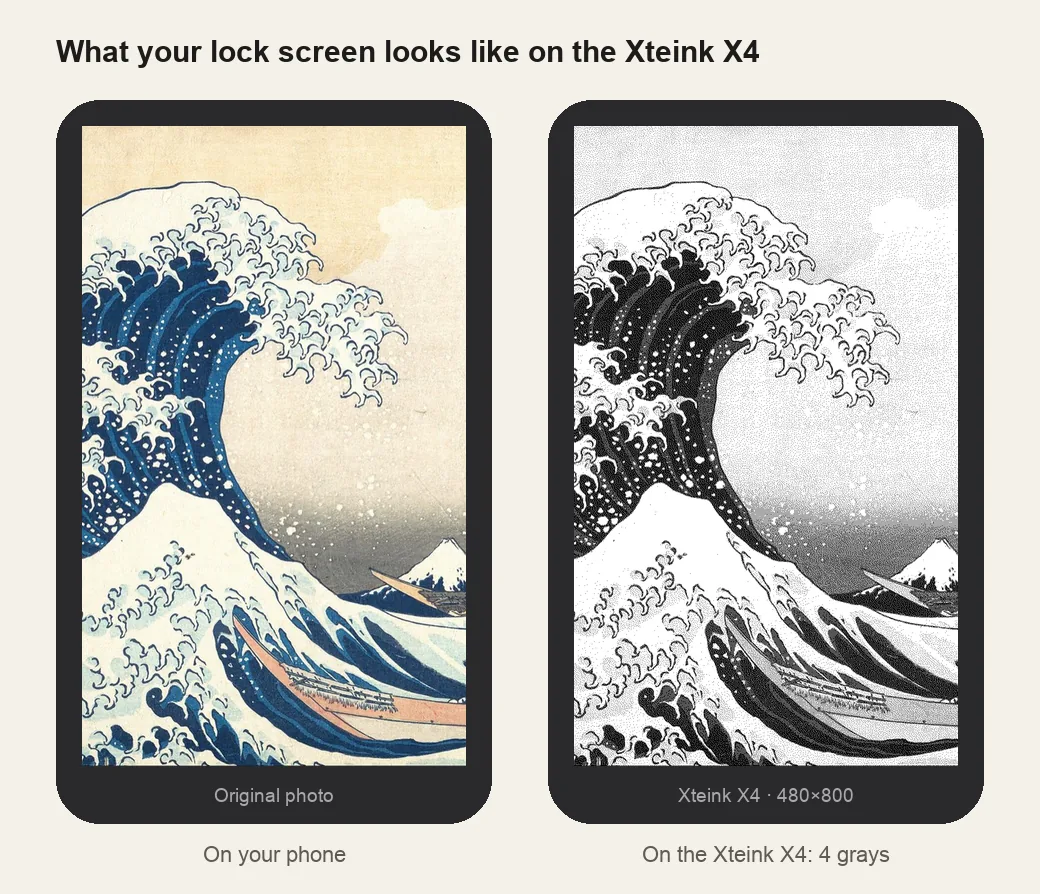
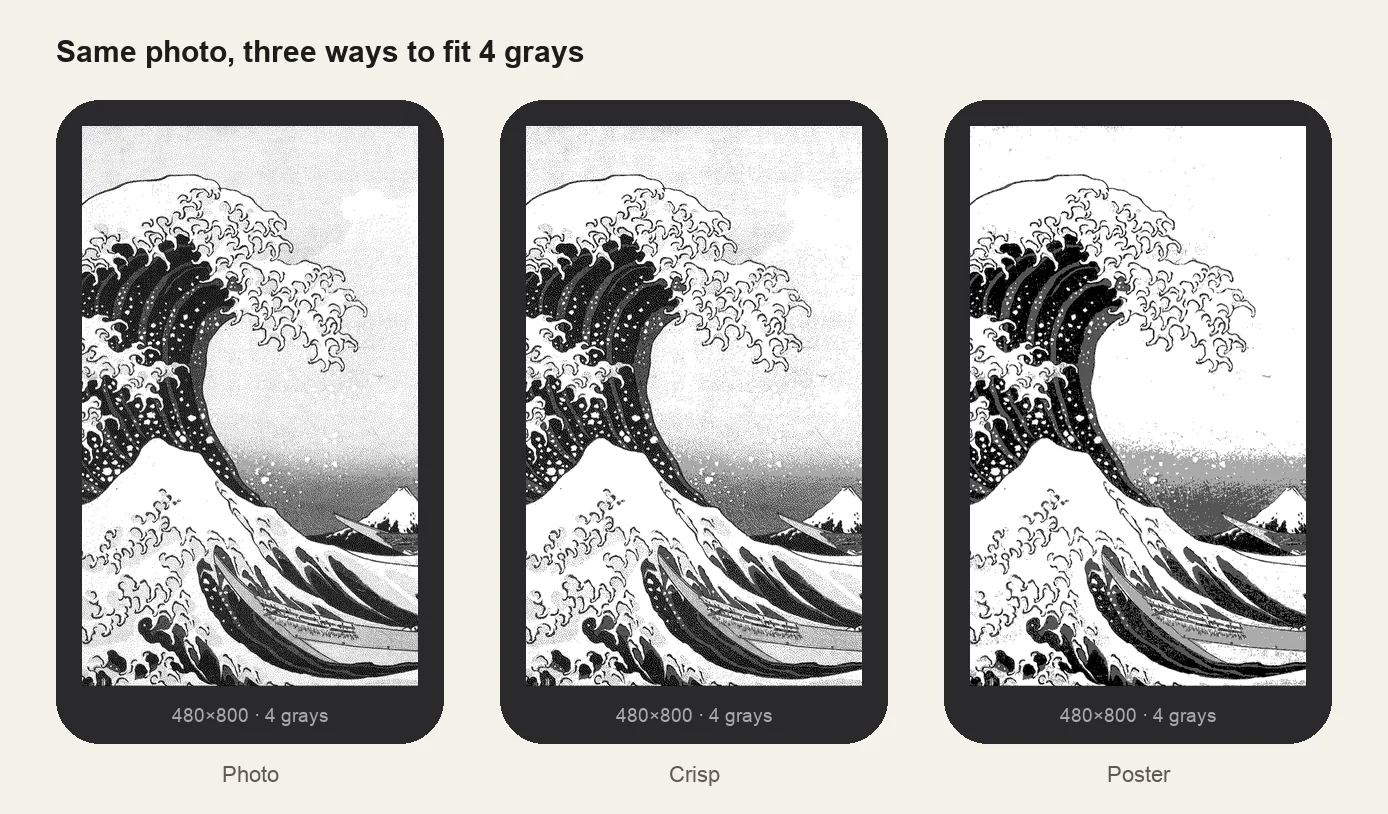
The Xteink X4 sleep screen is a 24-bit BMP at 480×800 pixels. Because the e-ink screen shows only 4 shades of gray, pre-dithering your image keeps details and text clear instead of turning blotchy.
- Pixel-perfect fit with no black bars
- True e-ink preview
- Photos never leave your device
- Xteink X4 / X4 Pro
- 480 × 800
- 4 grays
- .bmp
Drag the photo to reposition · live preview matches your screen
Sample: The Great Wave, Hokusai (public domain)
No picture that fits? Browse free artworks →
Don't see your model? Take a screenshot on your reader to find its pixel size (on Kindle, tap opposite corners simultaneously), then choose Custom.
- Copy sleep.bmp to the root of the SD card (or several BMPs into a folder named .sleep).
- Settings → Display → Sleep Screen → Custom.
Something not working, or an idea? Tell us. We read everything.
How it works
 1
1Use the exact size
480×800 pixels, portrait. Anything else gets scaled, padded with bars, or cropped by the device.
 2
2Tune for e-ink
With only black, two grays and white, a normal photo turns blotchy. Dithering trades gray levels for patterns of dots. The Photo look spreads them evenly, Crisp keeps whites cleaner and edges bolder, Poster and Ink go fully graphic.
 3
3Install
24-bit BMP: sleep.bmp in the SD card root, or several in /.sleep. Step-by-step instructions are under the download button.
What it looks like on the Xteink X4
Xteink X4 at a glance
| Models | Xteink X4, X4 V2 (Classic) and X4 Pro |
|---|---|
| Wallpaper size | 480×800 px (portrait) |
| Screen | 4.3-inch, 4 grays |
| How it's installed | 24-bit BMP: sleep.bmp in the SD card root, or several in /.sleep |
SD card/├── sleep.bmp ← one image: shown every time└── .sleep/ ← or many: a random one each time (sleep/ also works)├── wave.bmp└── cat.bmp
Stock firmware vs. CrossPoint
Both read sleep.bmp from the root. CrossPoint also reads a .sleep folder (one random image per sleep) and adds Cover + Custom, which shows the current book's cover while reading.
Simple images win
At 480×800 with 4 grays, bold illustrations, silhouettes and line art look sharper than busy photos.
Other sizes and models: see the full e-reader screen size chart.
Common questions
›My X4 still shows the default logo
The file must be named sleep.bmp in the SD card root (or be inside .sleep), and Sleep Screen must be set to Custom in Settings → Display.
›The image has borders or is squashed
It isn't 480×800 portrait. Re-make it at that size.
›JPG or PNG doesn't work
Custom sleep screens must be BMP. Uncompressed 24-bit is the safe choice and is what this tool outputs.
›The .sleep folder doesn't appear on my Mac
Folders starting with a dot are hidden in Finder. Press Cmd + Shift + . to show them, or name the folder sleep instead.